Set Up
Firstly, you need to create a project in Firebase. So go to https://console.firebase.google.com/

Click on “Create a project”.
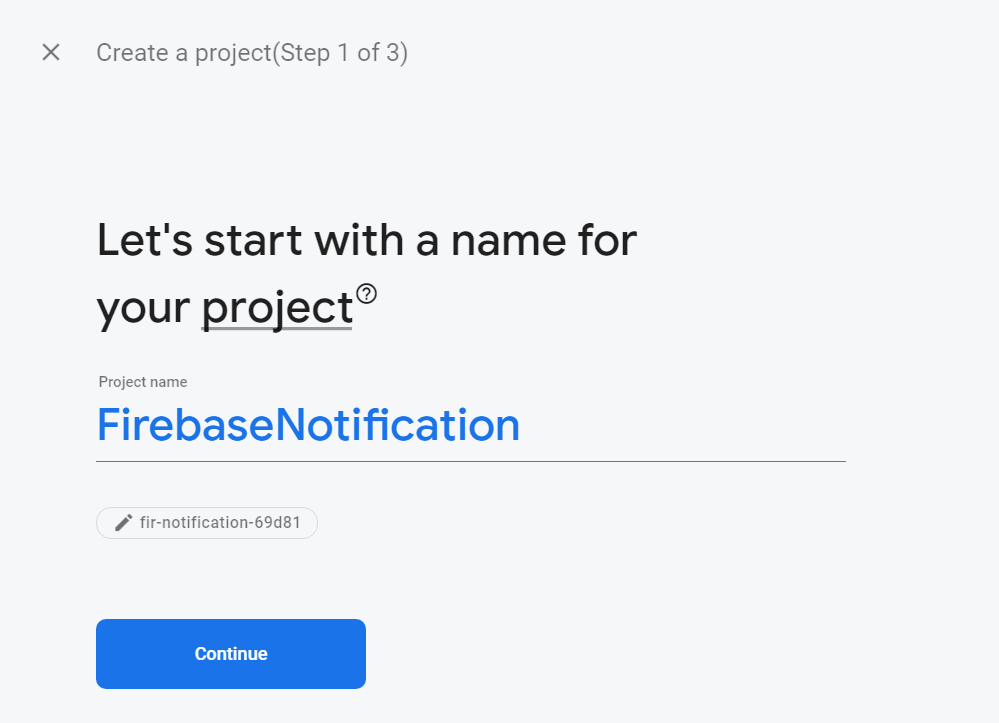
Give your project a name. For this example, I chose to name it FirebaseNotification.
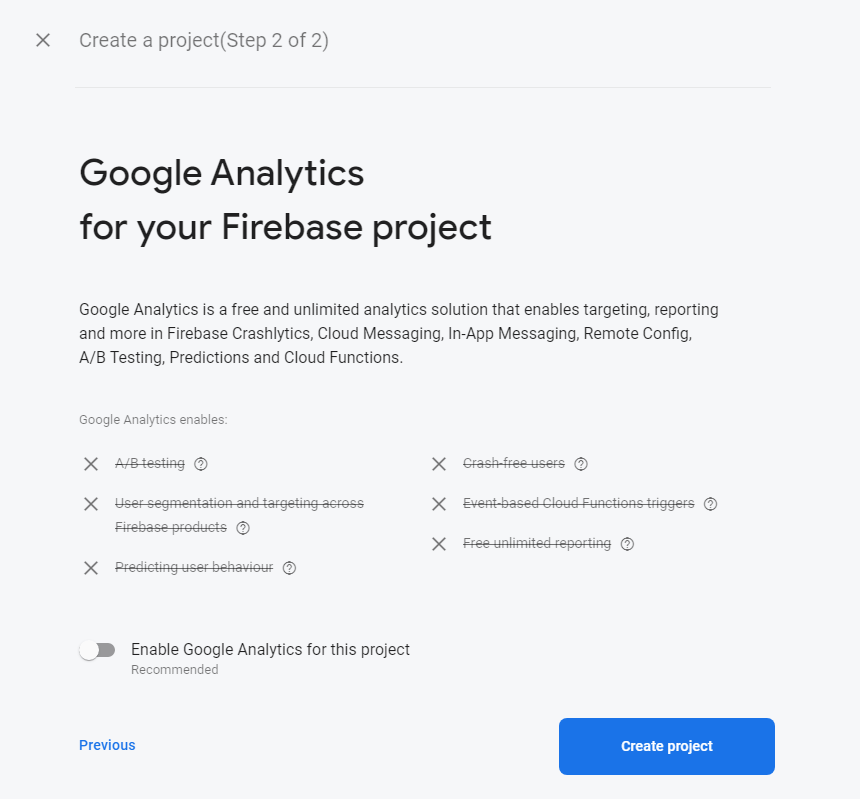
You can choose to turn on or off Google Analytics. After deciding, click on “Create project”.
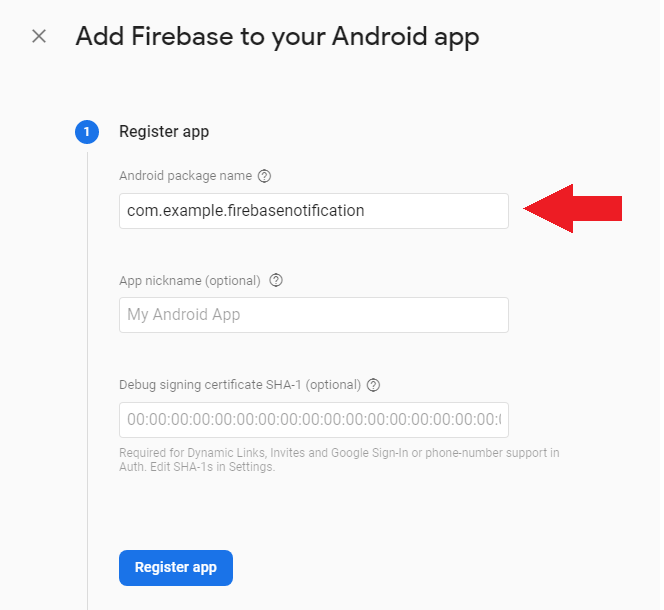
You will be redirected to the your Firebase console where you can register your app. Click on the Android icon (where the red arrow is pointing to) to register your app.

Copy your package name from your Android Studio project (I assume you already made one) and paste it in the first text field. If you are having trouble finding your package name, it is the first line in every activity and looks like this.
package com.example.firebasenotification;
After that click on “Register app”.
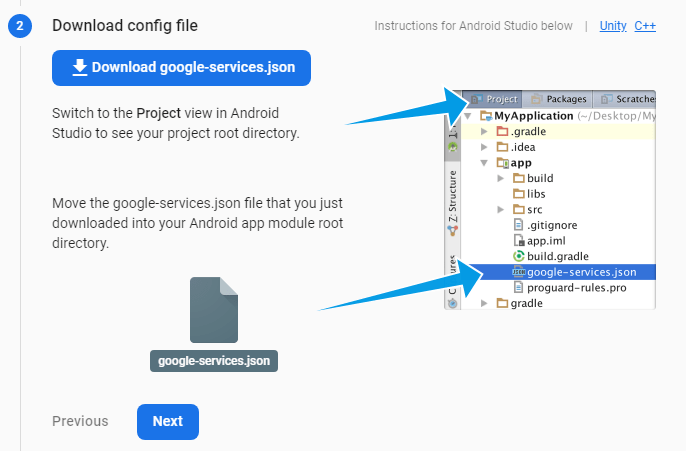
Next download the google-services.json file paste it in your Android app module root directory.
Next, copy this line of code and paste it in the dependencies section of your project-level build.gradle. This is under Grade Scripts > build.grade(Project: Your_Project_Name).
classpath 'com.google.gms:google-services:4.3.3'
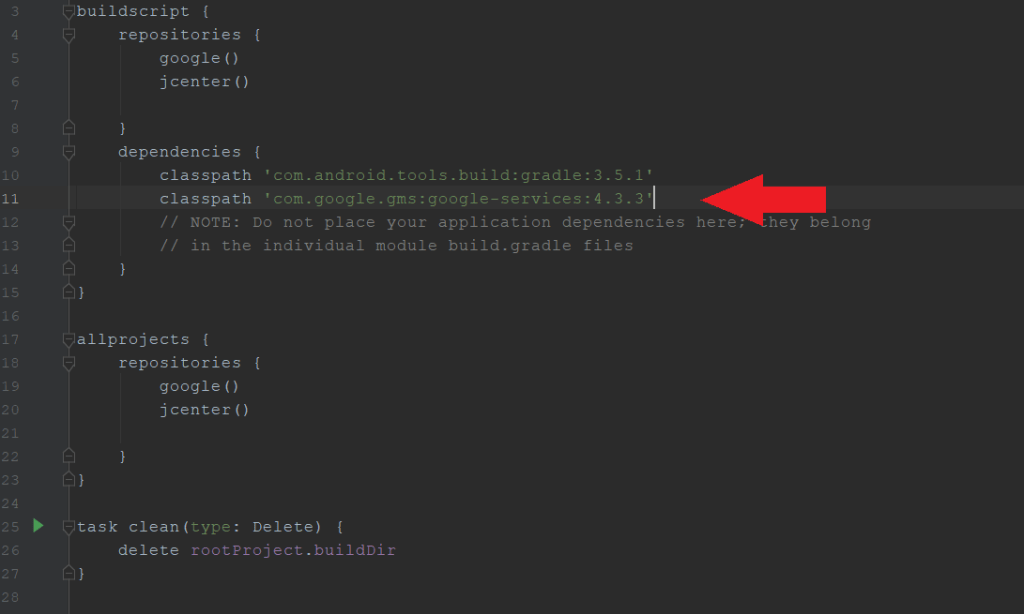
Next, paste this line of code in your app-level build.gradle. This is under Grade Scripts > build.grade(Module: app).
apply plugin: 'com.google.gms.google-services'
On the same page, paste these 2 lines of code in the dependencies section.
    implementation 'com.android.volley:volley:1.1.0'
    implementation 'com.google.firebase:firebase-messaging:20.1.0'
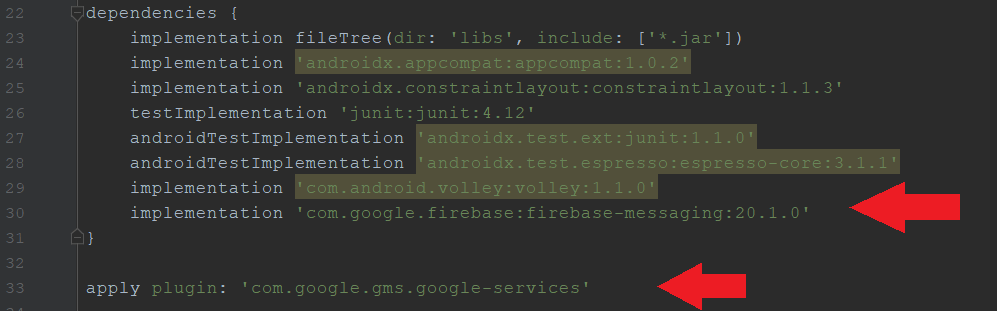
This is what this part should look like. These lines are so that you can get the Volley and Firebase Messaging libraries. After pasting everything, click on “Sync Now” at the top right corner of Android Studio. After it is done syncing, go back to Firebase and press “Next”.
If you did everything correctly, you can continue to the console. You are now done with the set up!

Sending Notifications
To send notifications to another device. You first need to subscribe to a Topic. Then, from another device, you specify what Topic to send to and only users subscribed to that Topic will get the notification.
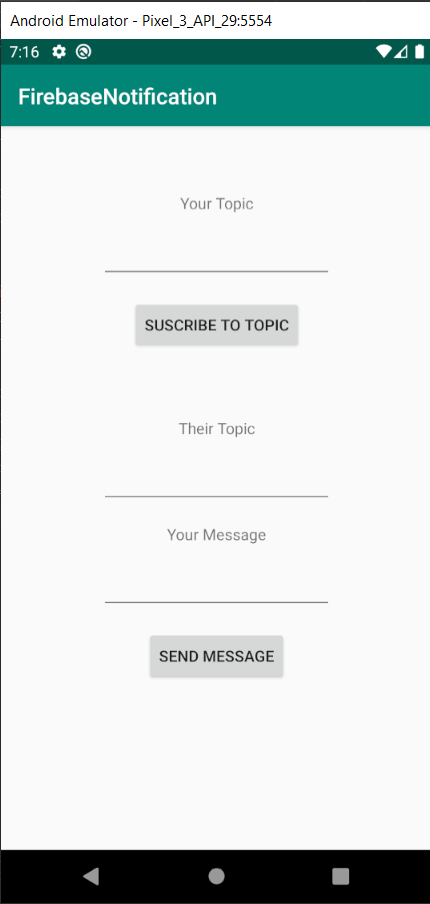
Here, I created a GUI where the user can,
- subscribe to a Topic
- enter the Topic where he wants to send to notification to
- the message that he/she wants to send
Following this code, you should be able to send to any topic that the other device has subscribed to.
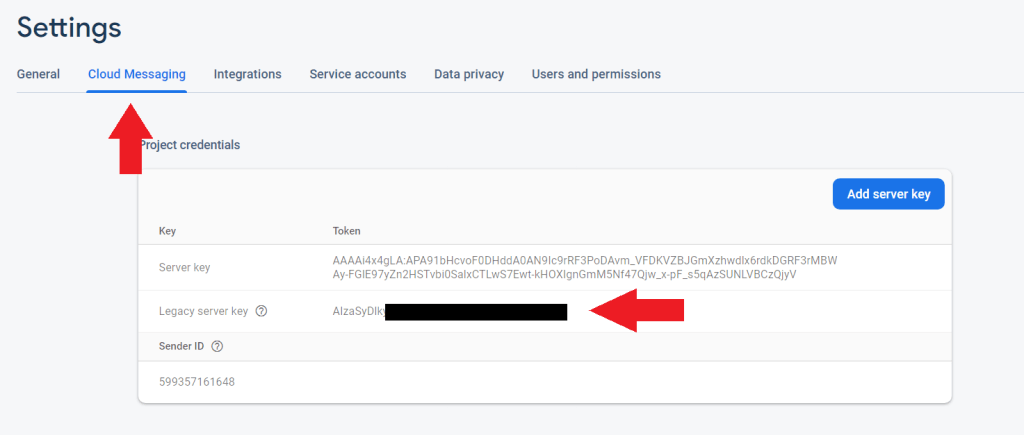
IMPORTANT: For line 106 (the highlighted one), do be sure to enter YOUR own legacy server key. To find your key go back to your Firebase Console, click on the gear icon on the left panel, and click on “Project settings”.
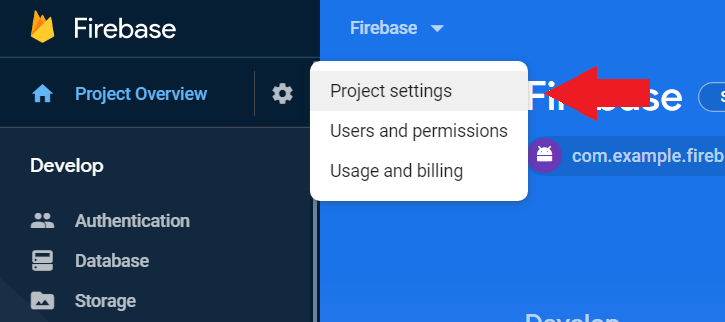
Click on the “Cloud Messaging” tab and you should see your Legacy server key. Copy this and replace it in the code where it says YOUR_LEGACY_SERVER_KEY on line 106.
package com.example.firebase;

import androidx.annotation.NonNull;
import androidx.appcompat.app.AppCompatActivity;

import android.os.Bundle;
import android.util.Log;
import android.view.View;
import android.widget.Button;
import android.widget.EditText;
import android.widget.Toast;

import com.android.volley.AuthFailureError;
import com.android.volley.Request;
import com.android.volley.RequestQueue;
import com.android.volley.Response;
import com.android.volley.VolleyError;
import com.android.volley.toolbox.JsonObjectRequest;
import com.android.volley.toolbox.Volley;
import com.google.android.gms.tasks.OnCompleteListener;
import com.google.android.gms.tasks.Task;
import com.google.firebase.iid.FirebaseInstanceId;
import com.google.firebase.iid.InstanceIdResult;
import com.google.firebase.messaging.FirebaseMessaging;

import org.json.JSONException;
import org.json.JSONObject;

import java.util.HashMap;
import java.util.Map;

public class MainActivity extends AppCompatActivity {

    EditText etYourTopic, etTheirTopic, etYourMsg;
    Button btnSubscribe, btnSend;
    String yourTopic, theirTopic, yourMsg;

    private RequestQueue mRequestQue;
    private String URL = "https://fcm.googleapis.com/fcm/send";

    @Override
    protected void onCreate(Bundle savedInstanceState) {
        super.onCreate(savedInstanceState);
        setContentView(R.layout.activity_main);

        mRequestQue = Volley.newRequestQueue(this);

        etYourTopic = findViewById(R.id.etYourTopic);
        etTheirTopic = findViewById(R.id.etTheirTopic);
        etYourMsg = findViewById(R.id.etYourMsg);
        btnSubscribe = findViewById(R.id.btnSubscribe);
        btnSend = findViewById(R.id.btnSend);

        btnSubscribe.setOnClickListener(new View.OnClickListener() {
            @Override
            public void onClick(View v) {
                yourTopic = etYourTopic.getText().toString();
                FirebaseMessaging.getInstance().subscribeToTopic(yourTopic);
                Toast.makeText(MainActivity.this, "Subscribed to " + yourTopic, Toast.LENGTH_SHORT).show();
            }
        });

        btnSend.setOnClickListener(new View.OnClickListener() {
            @Override
            public void onClick(View v) {
                theirTopic = etTheirTopic.getText().toString();
                yourMsg = etYourMsg.getText().toString();
                sendNotification();
                Toast.makeText(MainActivity.this, "Notification sent!", Toast.LENGTH_SHORT).show();
            }
        });
    }

    private void sendNotification() {

        JSONObject json = new JSONObject();

        try {

            json.put("to","/topics/"+ theirTopic);
            JSONObject notificationObj = new JSONObject();
            notificationObj.put("title","Title");
            notificationObj.put("body", yourMsg);

            json.put("notification",notificationObj);

            JsonObjectRequest request = new JsonObjectRequest(Request.Method.POST, URL,
                    json,
                    new Response.Listener<JSONObject>() {
                        @Override
                        public void onResponse(JSONObject response) {

                            Log.d("MUR", "onResponse: ");
                        }
                    }, new Response.ErrorListener() {
                @Override
                public void onErrorResponse(VolleyError error) {
                    Log.d("MUR", "onError: "+error.networkResponse);
                }
            }
            ){
                @Override
                public Map<String, String> getHeaders() throws AuthFailureError {
                    Map<String,String> header = new HashMap<>();
                    header.put("content-type","application/json");
                    header.put("authorization","key=YOUR_LEGACY_SERVER_KEY");
                    return header;
                }
            };
            mRequestQue.add(request);
        }
        catch (JSONException e)

        {
            e.printStackTrace();
        }
    }
}
Here is a demo of how the whole process looks like.
And that’s it! You can now send notifications from one device to another using Topics. Do note that for the other device to receive the notification, their app has to be in the background – meaning it has to be closed.
 MDAD Codes